Donate
You can use PayPal to donate. Doing so will encourage updates of this software.
Thank you.
Services - useful actions for Mac OS X (10.6 and newer)
by Matt Sephton
Background
“The Services menu in Mac OS X (from 10.6 onwards) lets you use features of one application while working in another. The Services menu is contextual, so it shows just the services appropriate for the application you’re using or content you’re viewing rather than all available services. You can access services with a right click of your mouse or Control-click of your trackpad. You can configure the menu to show only the services you want, and you can even create your own services using Automator.” —Apple
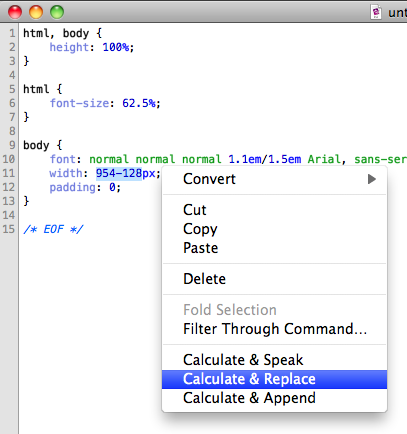
Calculate!
These use the bc command to calculate the mathematical result of expressions within the selected text in any application.
- Calculate & Append (1.01, 39kb zip) 29 August 2009
- — Selected text is appended with result.
- Calculate & Replace (1.01, 36kb zip) 29 August 2009
- — Selected text is replaced.
- Calculate & Speak (1.05, 62kb zip) 29 August 2009
- — Selected text is not modified, but is spoken out loud along with the result. Just for kicks.
- Calculate Services (137kb zip) 29 August 2009
- — All of the above.
Example expressions:
2+2
1/2
1024/16
(1/3 + 10 - 10) * 3
2 ^ 64
scale=5;pi=4*a(1);pi
x=3;y=4;z=sqrt(x^2+y^2);z
Other Services
- Clean Eject (1.00, 64kb zip) 10 January 2014
- — Eject selected Finder volumes using Clean Eject. I assign the keyboard shortcut Cmd+Shift+E to this Service through System Preferences.
- Convert Image to JPG/PNG (1.00, 66kb zip) 28 July 2011
- — Quickly convert selected images to JPG/PNG. Images are replaced, so watch out!
- Delete Data Fork (1.10, 42kb zip) 10 October 2011
- — Deletes the data fork of selected files. Make sure you know what you're deleting is not important file data!
- Delete Resource Fork (1.20, 41kb zip) 30 August 2012
- — Deletes the resource fork of selected files. Make sure you know what you're deleting is not important file data!
- Duplicate Image as JPG/PNG (1.00, 120kb zip) 12 December 2012
- — Quickly duplicate selected images as JPG/PNG. Same base filename and directory.
- Estimated Reading Time (2.00, 95kb zip) 02 February 2020
- — Estimates reading time (in minutes and seconds) of the selected text for slow (200wpm) and fast (300wpm) reading speeds.
- GZip Individual Files (1.00, 38kb zip) 15 November 2011
- — Individually gzip-compress each file of a multi-file Finder selection.
- Open current Safari page in Google Chrome (1.00, 52kb zip) 05 May 2011
- — Opens the current Safari page in Google Chrome. Handy if you run Safari without Flash and use Chrome to view pages with Flash content.
- Use image as Desktop Picture (1.00, 29kb zip) 27 January 2012
- — Quickly set any image as your desktop picture.
- Zip Individual Files (1.00, 38kb zip) 26 July 2011
- — Individually zip-compress each file of a multi-file Finder selection.
Installation
Automatically, you should be able to double click and choose install.
Manually, you can put the Service at ~/Library/Services/ (current user only) or /Library/Services/ (for all users).
Optionally, assign a shortcut key through System Preferences.
How to configure a Service
- Step 1. In the Application menu choose Services/Services Preferences...
- Step 2. System Preferences/Keyboard/Keyboard Shortcuts/Services
- Step 3. Select a service, press Enter and then press your chosen shortcut key combo
How to invoke/use a Service
- Use a shortcut key combo
- Use the contextual (right-click) menu
- Use the Services menu in the Application menu
Editing
Double click a Service to edit it using Automator.
Version history
02 February: Added Estimated Reading Time (1.01)
2020
10 January: Added Clean Eject (1.00)
2014
12 December: Added Duplicate Image As JPG/PNG (1.00)
30 August: Updated Delete Resource Fork for recent OS X changes (1.20)
27 January: Added Use image as Desktop Picture (1.00)
2012
15 November: Added GZip Individual Files (1.00)
10 October: Added Delete Data Fork (1.10) and updated Delete Resource Fork (1.10) - both preserve the file modified date
28 July: Added Convert Image to JPG/PNG (1.00)
26 July: Added Zip Individual Files (1.00)
05 May: Added Open current Safari page in Google Chrome (1.00)
2011
02 October: Added Delete Resource Fork (1.00)
29 August: Updated Calculate & Append (1.01), Calculate & Replace (1.01), Calculate & Speak (1.04) to remove trailing zeros. Calculate & Speak now speaks more English (1.05)
28 August: Introduced Calculate & Append (1.00), Calculate & Replace (1.00), Calculate & Speak (1.03)
2009
Links
Mac OS X Automation by Apple’s Sal Soghoian
How to create a Service to sort paragraphs of text
man bc the calculator used by the services
http://osx.iusethis.com/app/calculateservices


